Important security guidance (please read first)
Email quarantine exists to protect your organisation from phishing, malware and credential theft.
Releasing the wrong message can directly expose your account or wider business systems.
Before releasing any email:
-
Only release emails you were genuinely expecting
-
Be cautious with urgent language, payment requests, or login prompts
-
Check the sender address carefully, not just the display name
-
If you are unsure, do not release the message and contact IT support
Our recommended approach is to review each quarantined email individually as it arrives, rather than releasing messages in bulk.
You will receive daily quarantine notification emails, highlighting messages that are awaiting review.
Quarantined emails are only retained for up to 30 days. After this period, they are permanently deleted and cannot be recovered, so it is important to review notifications in a timely manner.
The three ways you can release quarantined emails
There are three ways to deal with emails held in Microsoft Defender, as follows:
Option 1 (recommended): Review and release emails as they arrive
When Microsoft Defender quarantines an email, you may receive a notification such as the below, which allows you to either "Review Message" or "Release".
We recommend reviewing every email at this stage.
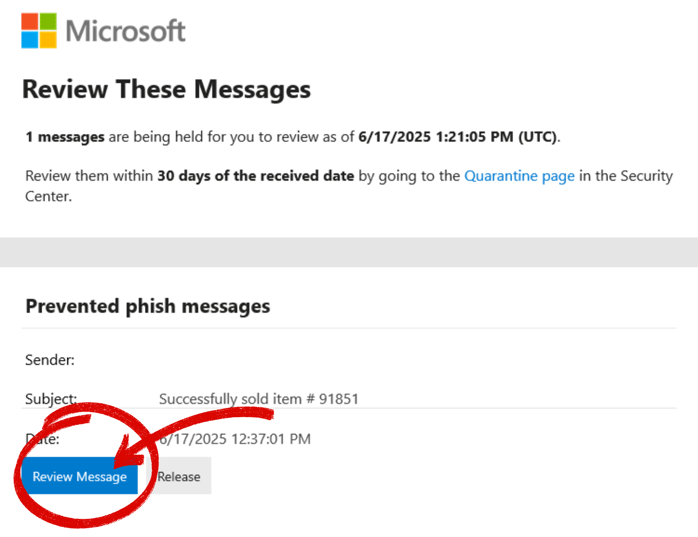
By selecting the blue box - "Review Message" - you will be taken straight to your full list of quarantined emails where you will get a pop-up on the right-hand side showing you the details of the email.
This is the safest and simplest approach to access your list of quarantined emails, because:
-
You can assess context while the email is still relevant
-
You are less likely to bulk release something malicious
-
You stay in control of each individual decision
Here you can review the email you have just received, and if the email content matches what you were expecting, you can choose to release it.
.png?width=1536&height=1536&name=Microsoft%20Defender%20Quarantine%20-%20Email%20Notification%20Release%20(2).png)
This will release the email into your inbox within the next couple of minutes.
If you wish to add this domain to a "safe senders list", which means in future any emails from that domain will be automatically released in to your inbox, you can do so by selecting the 3 dots to the right of "release email", and then selecting "Allow sender".
.png?width=1536&height=1536&name=Microsoft%20Defender%20Quarantine%20-%20Email%20Notification%20Release%20(3).png)
If you do not want to release the email because you know it is not legitimate, or if you are suspicious of the message, delete it instead.
To do this, click the same 3 dots to the right of "Release email", and select "Delete from quarantine".
.png?width=1536&height=1536&name=Microsoft%20Defender%20Quarantine%20-%20Email%20Notification%20Release%20(4).png)
Selecting this option will open a new pop-up window.
Make sure to select the tick box and then navigate to the bottom left of the pop-up window to delete the email.
.png?width=1536&height=1536&name=Microsoft%20Defender%20Quarantine%20-%20Email%20Notification%20Release%20(5).png)
Please note: Deleted emails cannot be recovered, but this is preferable to releasing a malicious message.
Once you have either released or deleted the email, you will be taken to your full list of quarantined emails. Here you can continue to review any emails that are currently being held in quarantine.
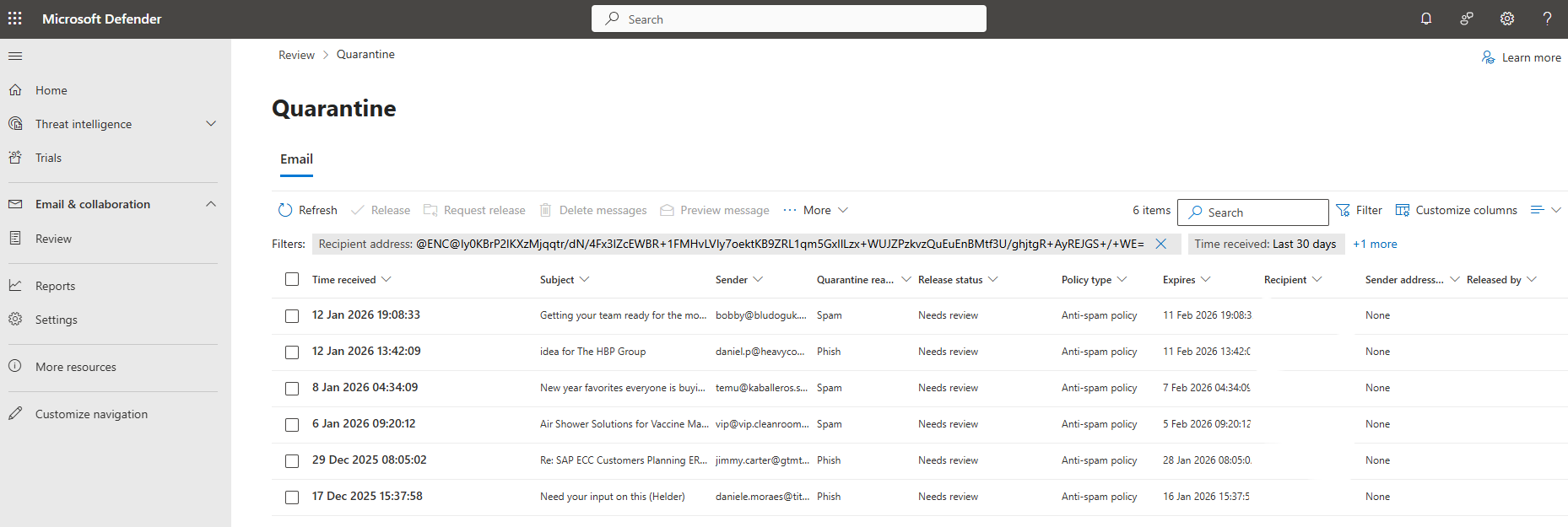
To review an email in quarantine, simply click on the email you want to review and this will open the same pop-up window on the right-hand side as before.
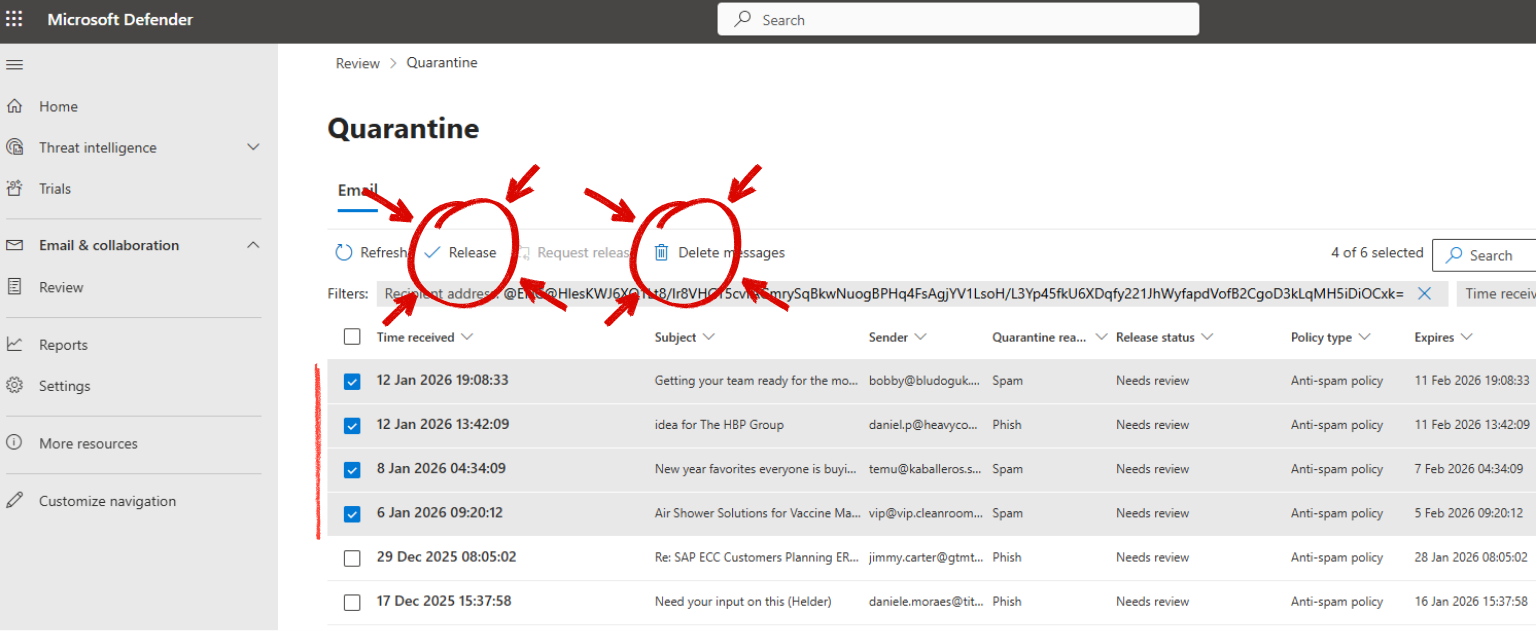
bulk delete or release emails
To action emails in bulk, select the emails you wish to release or delete and select the appropriate option in the top bar:
Option 2: Quick-release specific emails
You can release emails directly from within the email notification, but this should only be used when all of the following apply:
-
You were expecting this email from this email address
-
You are confident the sender is legitimate
-
The content looks legitimate and consistent with that sender
To do this, instead of selecting "Review Message", click "Release" instead, circled in red in the image below. This will quick release that email into your inbox.
If in doubt, do not use this option and carefully review each email.
Option 3: Review quarantined emails in bulk via the Defender Portal
If you prefer to review emails in one place, or want to check whether anything is currently quarantined outside of the email notifications, you can do this through the Microsoft Defender Portal.
Step 1: Access the Microsoft Defender Portal
Go to: https://security.microsoft.com
This will take you to the Microsoft Defender Portal.
Step 2: Navigate to Quarantine
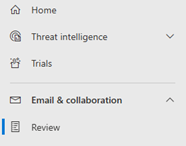
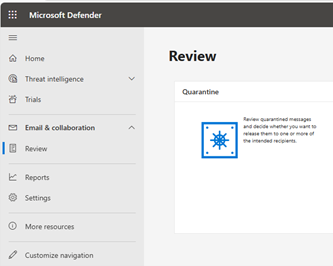
From the left hand menu, select Email & collaboration and click Review
Then select Quarantine from the main window:
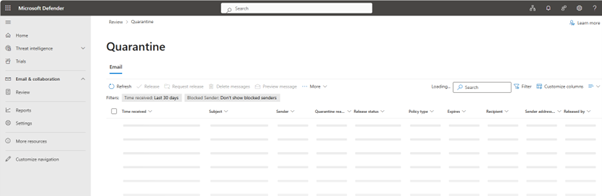
Step 3: Review quarantined emails
You will see a list of quarantined items with details such as:
-
Sender
-
Subject line
-
Date received
-
Quarantine reason
Take time to review each message carefully.
Step 4: Release or request release
Following the same steps highlighted in Step 1, you can select the email and choose to release or delete this email.
Important Reminder
Email security controls are designed to block real threats. Treat quarantined messages with caution, even if they appear familiar at first glance.
If you are ever unsure, do not release the email and speak to our IT Support Team for advice.
.png)

.png?width=100&name=HBP%20Gradient%20Bar%20(210mm).png)

 info@thehbpgroup.co.uk
 01482 423910


.png?width=2484&height=10&name=HBP%20Gradient%20Bar%20(210mm).png)