Managing purchase orders, deliveries and stock accurately in Exchequer SPOP is essential for preventing errors, missing transactions and stock valuation issues.
When problems occur, they are often caused by small process gaps rather than system faults, but those gaps can quickly compound and lead to negative stock levels, lost transactions, or inconsistencies that are difficult to resolve later.
This guide outlines best-practice approaches for working with Purchase Orders (PORs), Purchase Delivery Notes (PDNs) and Purchase Invoices (PINs) within Exchequer SPOP, along with practical steps to help maintain data integrity, reduce processing issues and investigate problems when transactions do not behave as expected.
Correcting Errors on PDNs
Once a Purchase Order Receipt (POR) has been fully received, it moves into Order History. If you need to reinstate the order for any reason, there is a defined process that allows this to be done safely.
By editing the PDN and reducing the quantity on the relevant lines, the POR will move back from Order History into the Orders Daybook, allowing it to be edited again. The outstanding quantity on the POR will reflect the difference between the original PDN quantity and the reduced amount.
Example:
If you want to fully reinstate an order, edit all PDN lines and set the quantity to 0.
Even if the transaction has progressed as far as the Invoice (PIN) stage, editing the PIN quantity will restore the order. In this case, because the delivery note is removed entirely from the system, a new PDN can then be generated from the restored order.
This approach ensures that order history remains consistent and avoids manual workarounds that can cause data issues later.
Avoiding Negative Stock
As a general rule, stock should not be sold or issued if it is not physically available. Allowing stock to drop into negative levels can cause significant issues with pricing and valuation, particularly when using the FIFO costing method.
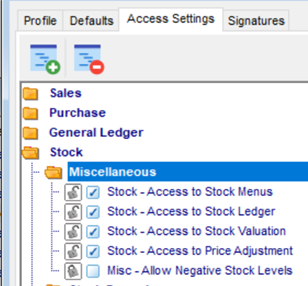
There is a user permission called:
“Misc – Allow Negative Stock Levels”.
We recommend that this permission is reviewed carefully and restricted where possible.
If the password option “Allow Negative Stock” is set to No, the following setting should also be enabled:
System Setup > General Settings > Stock/SPOP tab > Display ‘Insufficient Stock’ warning
This warning does not always prevent negative stock from occurring, so users must still pay close attention and verify their process before continuing.
Allowing negative stock can lead to long-term valuation problems that are difficult to correct later, so prevention is always preferable.
Managing the Processing Stage
Before delivering an order or invoicing a delivery, it is important to ensure that no other user has the transaction open for editing.
Multiple users accessing the same transaction at the same time increases the risk of:
-
Lost lines
-
Incomplete postings
-
Missing transactions during processing
A common best practice is to leave order processing to the end of the day, when most users have finished their tasks. This significantly reduces the risk of transactions being open elsewhere in the system during posting.
Checking Stock Levels Regularly
Many organisations already run periodic stock checks, but it is recommended to do this frequently to ensure that stock quantities remain accurate and up to date.
Running a stock check helps identify:
-
Stock that has dropped into negative levels
-
Discrepancies between physical and system stock
-
Issues that could cause valuation problems later
It is advisable to run this process monthly or quarterly, depending on transaction volume.
Because stock checks can take time to complete, it is often best to plan them over a weekend or during a period when the system can run uninterrupted.
Best-Practice Investigation Steps for Missing Transactions
If transactions frequently go missing during the processing or daybook post stage, the following investigation steps can help identify potential causes.
1. Run a Workstation Setup
This should be one of the first checks on any affected workstation. Windows updates can alter settings and running a workstation setup helps ensure Exchequer is correctly configured.
2. Check the LOGS Folder
If Exchequer has crashed, the LOGS folder within the main Exchequer directory is the first place to look. This folder records errors and events that can help pinpoint the cause of the issue.
3. Review Bugreport.txt
The Bugreport.txt file, also located in the main Exchequer folder, contains exception error messages recorded on the workstation. These messages are useful for diagnosing recurring crashes.
4. Use Windows Event Viewer
Windows Event Viewer records all application crashes on the workstation, including Exchequer. This can provide more technical detail that helps identify underlying problems.
5. Review User Activity
If issues occur frequently, note which users are associated with the affected transactions. Repeated issues involving the same users may indicate workstation or connectivity problems, such as mapped drive disconnections.
You can view who created and edited a transaction via: Notes tab > Switch to > Audit History
6. General User Best Practice
Users should always exit Exchequer using the red X to ensure the program fully closes at the end of each day.
Any linked modules, such as:
-
Excel OLEs
-
Importer
-
Exchequer Mobile
should also be fully closed. Leaving sessions open overnight can cause record locks or “ghost” sessions.
It is recommended to run the Logged In User Report at the end of each working day. This should return the message “No users detected”, confirming that all Exchequer sessions have been closed correctly.
Why These Practices Matter
Most Exchequer issues are not caused by system faults alone, but by small process gaps that compound over time. Following consistent best practices around order processing, stock management and user behaviour significantly reduces the risk of data issues, lost transactions and time-consuming investigations.
If you are experiencing any of the issues covered in this guide or would like to review your current Exchequer processes, get in touch and we can help identify where problems are occurring and how to resolve them.
.png)

.png?width=100&name=HBP%20Gradient%20Bar%20(210mm).png)

 info@thehbpgroup.co.uk
 01482 423910


.png?width=2484&height=10&name=HBP%20Gradient%20Bar%20(210mm).png)