
Automatic email forwarding in Outlook is a simple way to make sure important emails don’t get missed — whether you’re on holiday, moving roles, or want another mailbox to receive messages while you’re away. In this guide, we’ll show you how to enable (and disable) automatic forwarding in Outlook using Microsoft 365 / Outlook on the web, plus a few key tips to keep things secure.
What is automatic forwarding?
Automatic forwarding sends copies of incoming emails from your mailbox to another email address automatically.
This can be useful if:
- You’re out of office and someone needs to monitor your emails
- You’ve changed roles and want messages redirected temporarily
- You want a shared mailbox or colleague to receive emails while you’re unavailable
- You’re transitioning between email accounts
Important: Many organisations restrict automatic forwarding for security reasons. If the option isn’t available, your IT admin may need to enable it.
Step 1: Sign in to Microsoft 365
- Open Outlook either in your desktop app or in your web browser.
- If opening in the web version, sign in on the Microsoft 365 sign-in page, open the App launcher (the 9 dots in the top left) and Select Outlook.
Step 2: Open Setting
- In the top right, click the Settings icon (⚙️).
- In the search bar, type Forwarding. Or seclect the Email option in the left side bar and then select Forwarding from the sub-menu.
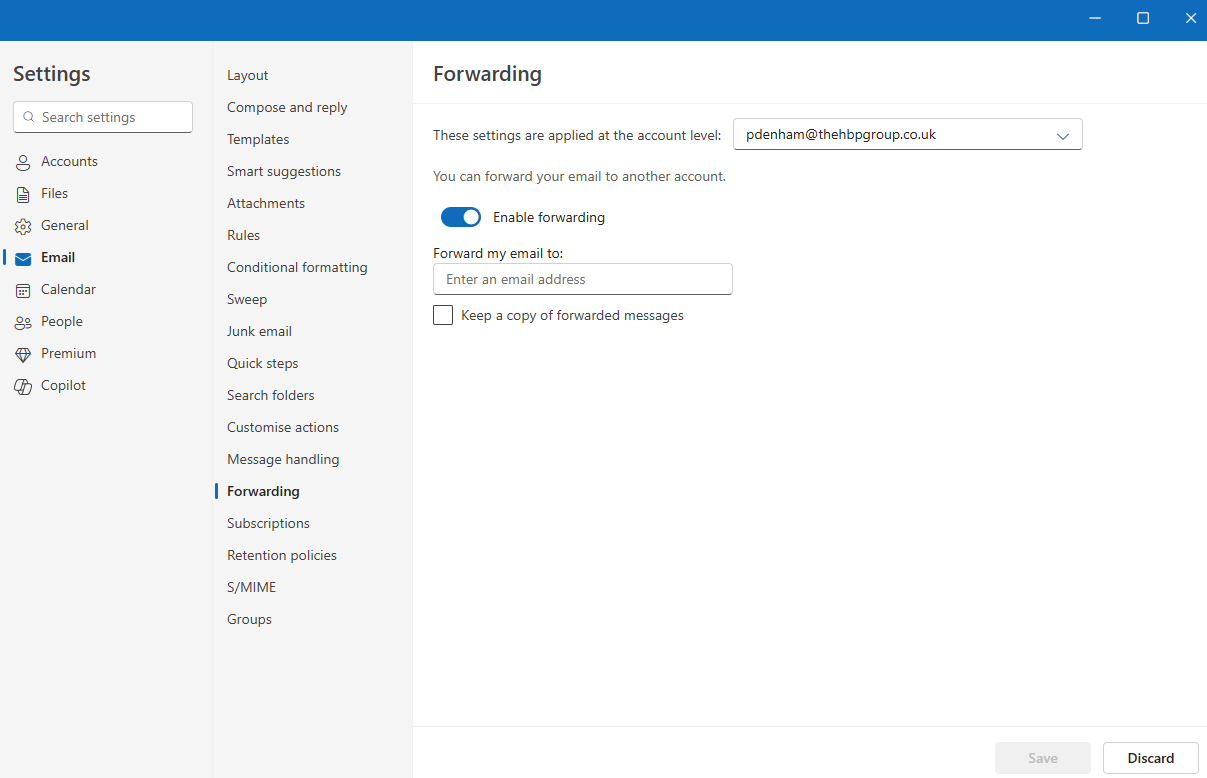
Step 3: Turn on Forwarding
- Tick Enable forwarding
- Enter the email address you want to forward to.
- Click Save
Optional: Keep a copy in your mailbox
If you want to keep a copy of forwarded messages in your mailbox:
- Leave Keep a copy of forwarded messages ticked
This is recommended in most cases, as it ensures you still have a record of what was received and forwarded.
How to turn off automatic forwarding
If you no longer need forwarding enabled:
- Open Settings (⚙️)
- Search for Forwarding
- Untick Enable forwarding
- Click Save
Once this is done, emails will stop forwarding immediately.
Not a customer of The HBP Group?
If you'd like to find about more about how The HBP Group can provide support for your business please visit our Managed IT Services page.


.png?width=100&name=HBP%20Gradient%20Bar%20(210mm).png)

 info@thehbpgroup.co.uk
 01482 423910


.png?width=2484&height=10&name=HBP%20Gradient%20Bar%20(210mm).png)