Managing your VAT return accurately is essential for maintaining compliance and keeping your accounts up to date. Fortunately, Microsoft Dynamics 365 Business Central makes the VAT return process straightforward when you follow the correct steps.
In this guide, we’ll walk you through how to create, review, submit and settle a VAT return in Business Central.
Step 1: Create a New VAT Return
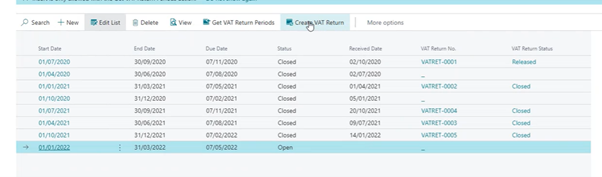
Start by navigating to VAT Return Periods.
From this screen, select Create VAT Return.
This will open the VAT return creation screen for the selected period.
Step 2: Suggest VAT Lines
Once inside the VAT return screen:
- Select Process
- Click Suggest Lines
- Choose your relevant VAT Period
Business Central will now pull the VAT values directly from your VAT Statement.
Important:
You cannot edit VAT values from within this screen. If anything looks incorrect, you will need to review and correct the underlying transactions before proceeding.
Step 3: Review and Release the VAT Return
Once you are satisfied that the figures are correct:
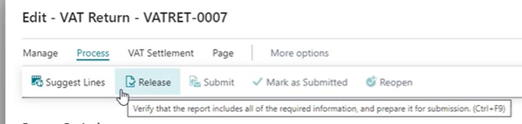
- Click Release
Releasing the VAT return marks the transactions and values as committed. This confirms you are ready to proceed with submission.
Step 4: Submit the VAT Return
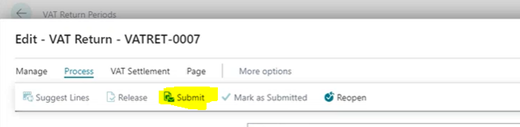
After releasing the return, you can now select Submit.
Once submitted, the VAT return is ready for settlement.
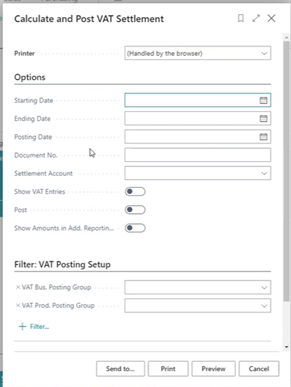
Step 5: Calculate and Post the VAT Settlement
After submission, the next step is to:
- Run Calculate and Post VAT Settlement
This process:
- Marks the VAT transactions as complete
- Closes off the VAT period
- Posts the VAT values to the General Ledger accounts
Key Things to Note:
- The Posting Date entered will become the VAT transaction date.
- When Post is set to “Yes”, Business Central will run the routine to close the VAT period automatically.
Once complete, the VAT values will be posted to the appropriate General Ledger accounts.
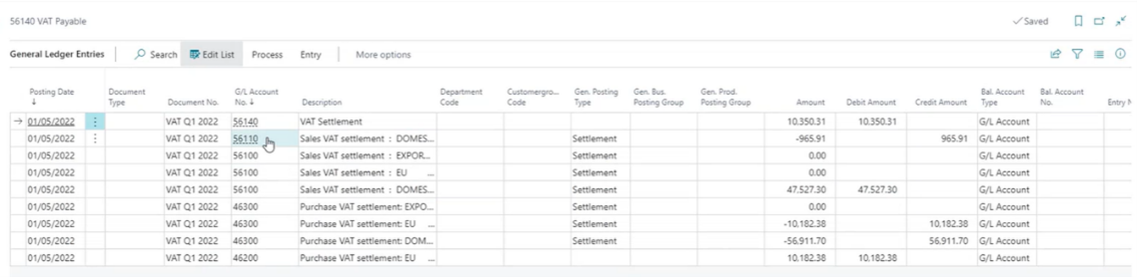
Step 6: Open the Next VAT Period
After the settlement is complete:
- Go back to VAT Return Periods
- Select Get VAT Period
This will set up the next VAT period, ready for future processing.

Best Practice Tips
- Always review transactions before releasing the VAT return.
- Ensure posting dates are correct before running the settlement.
- Remember: VAT values cannot be edited at the VAT return stage — corrections must be made in the source transactions.


.png?width=100&name=HBP%20Gradient%20Bar%20(210mm).png)

 info@thehbpgroup.co.uk
 01482 423910


.png?width=2484&height=10&name=HBP%20Gradient%20Bar%20(210mm).png)