
If you’re receiving unwanted or spam emails in Outlook, you can block specific email addresses or entire domains using the Blocked Senders list. Once blocked, any emails from those senders are automatically treated as junk and moved to your Junk Email folder. You can add or remove blocked senders at any time through Outlook’s Junk Email settings, or quickly block a sender directly from an email.
Option 1: Block a sender using Junk Email Options
-
In Outlook, go to Junk Email Options.
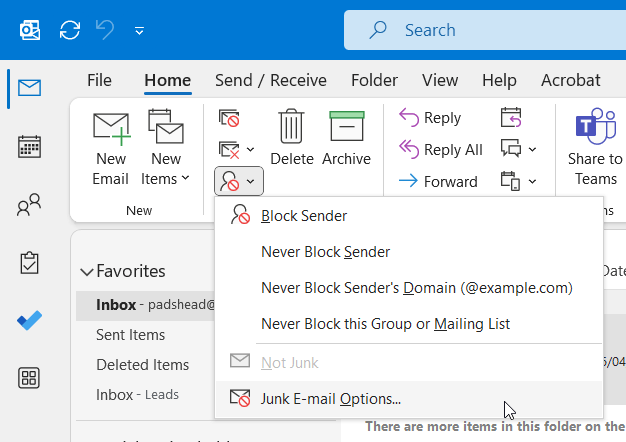
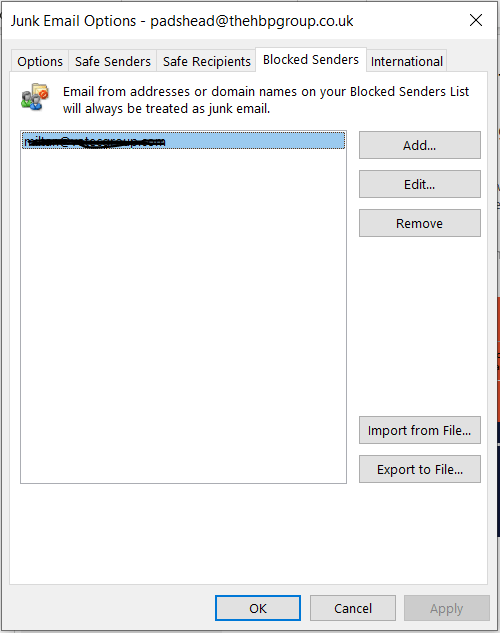
- Select the Blocked Senders tab.
- Click Add.
- Enter the email address (for example,
example@domain.com) or domain name (for example,domain.com) you want to block. - Click OK to save.
- If you need to remove someone from junk, select it in the Blocked Senders list and click the Remove button.
Option 2: Quickly block a sender from an email
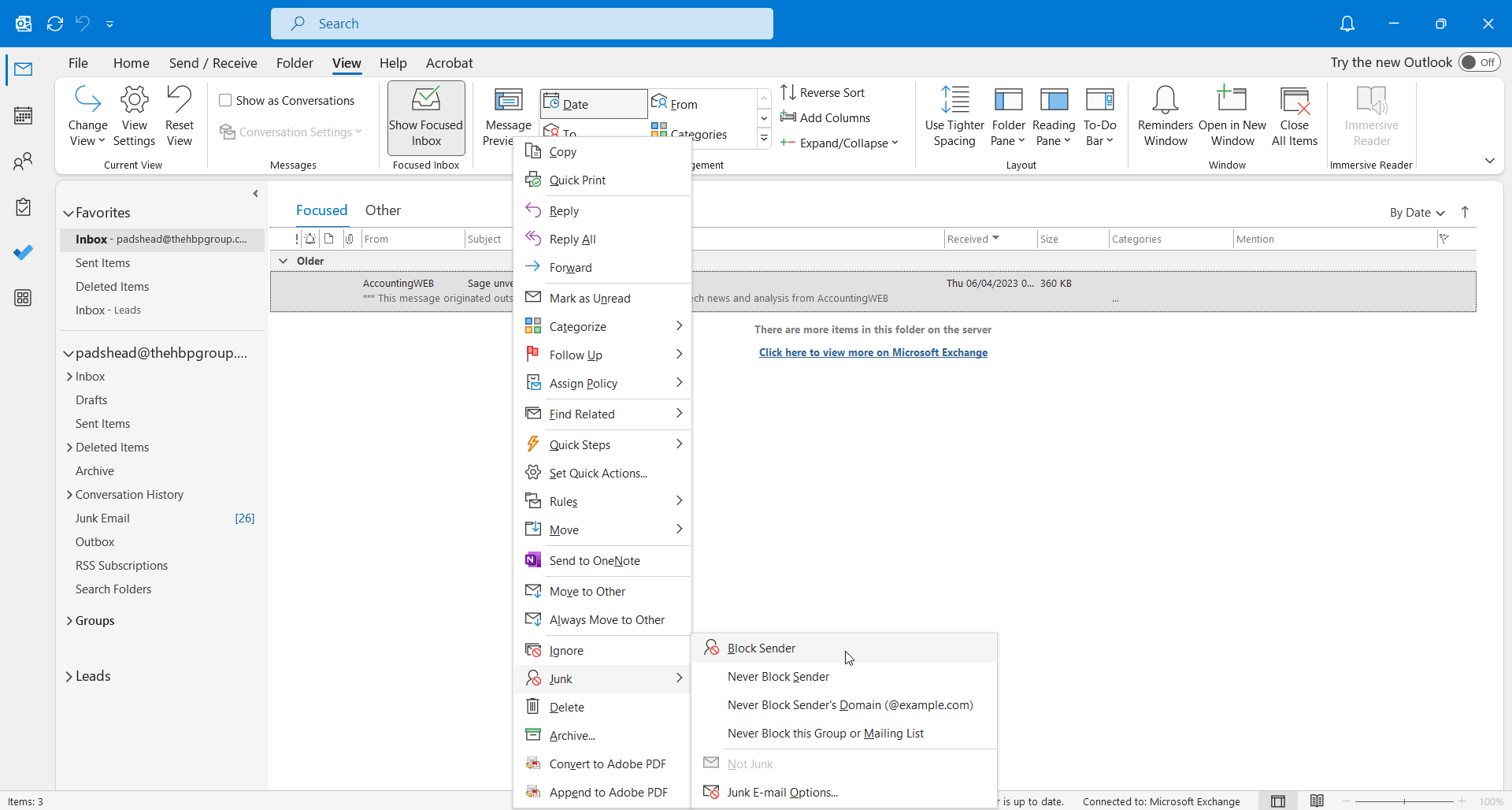
- Right-click the email you want to block.
- Select Junk.
- Click Block Sender.
Not a customer of The HBP Group?
If you'd like to find about more about how The HBP Group can provide support for your business please visit our Managed IT Services page.


.png?width=100&name=HBP%20Gradient%20Bar%20(210mm).png)

 info@thehbpgroup.co.uk
 01482 423910


.png?width=2484&height=10&name=HBP%20Gradient%20Bar%20(210mm).png)