
Exchequer Workstation Installation
From time to time you may need to run a workstation install. This is the routine that willinstall or upgrade Enterprise on each PC after it has been installed on the server. Youmay also find that the HBP Exchequer helpdesk may also ask you to run this for differentreasons.
Note: If this is the first time you are installing Exchequer on a new PC, and you have the Pervasive Edition of the software, then you will need to run a Pervasive Client Installation first. Please see this video for guidance.
To Run the Workstation Install:
Browse to your Exchequer installation location wstation folder. In this example, R:\Excheqr\Entrprse\wstation:
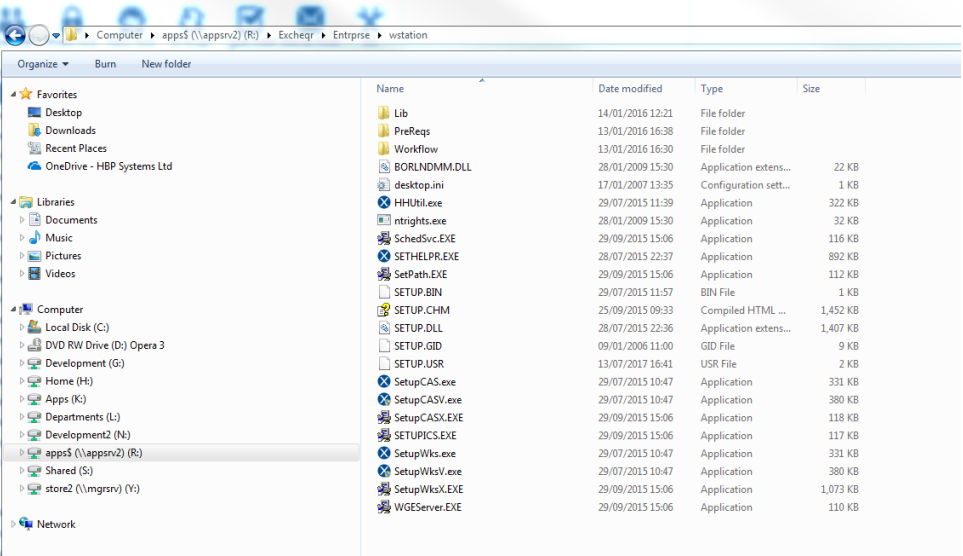
Double click to run the file Setupwks.exe:

You will then be presented with the following screens:
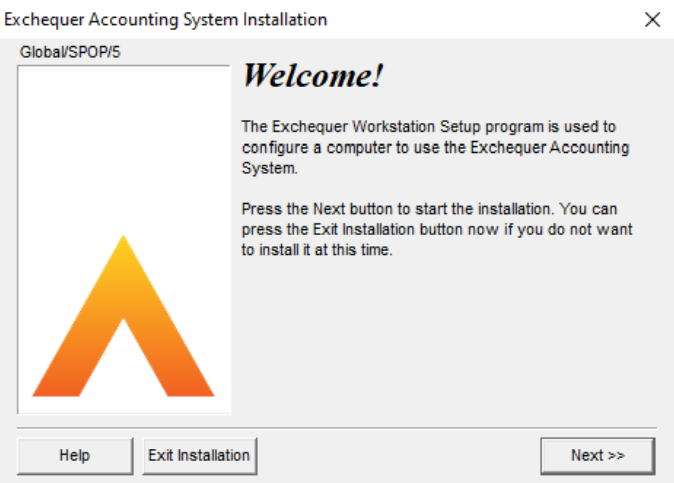
Select "Next".
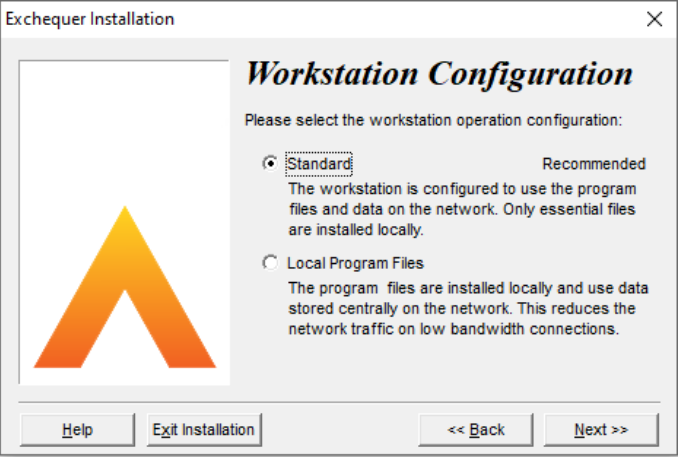
Select "Standard" and then "Next".
Note: If you are running Exchequer remotely via a remote desktop connection then you may be set up with local program files. If you are unsure as to whether this is the case,please contact support and we can advise.
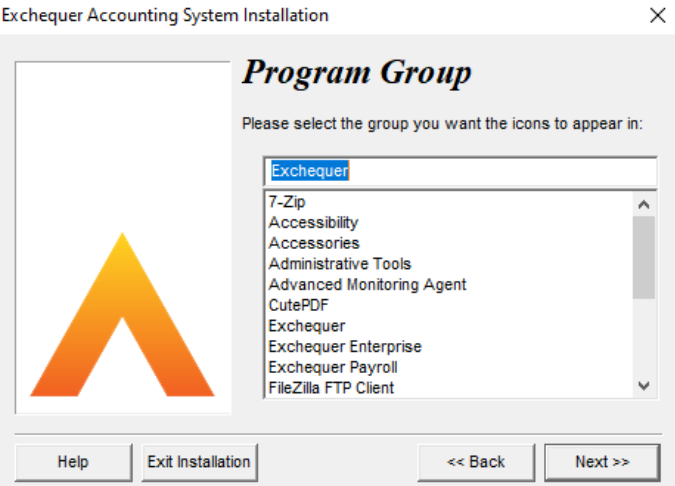
Select "Next".
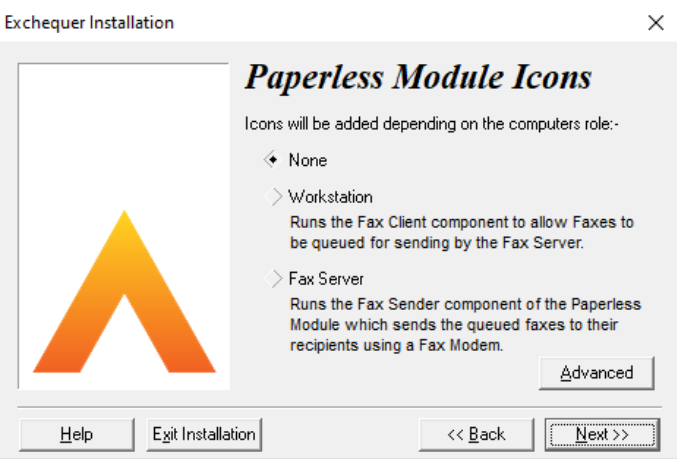
Select "None" and then select "Next".
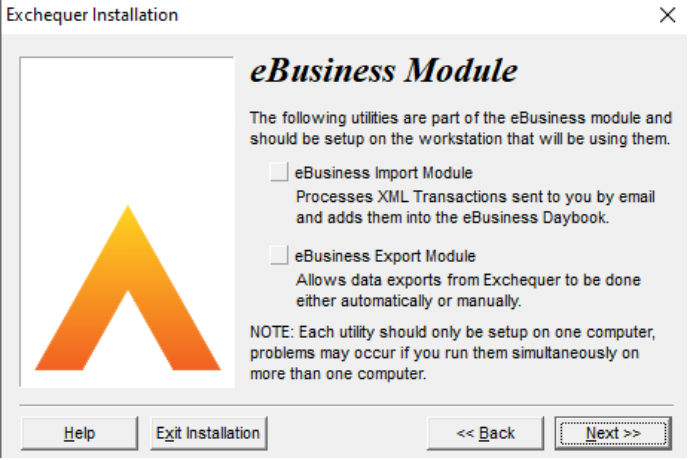
Select "Next" (without ticking any of the boxes).
Note: You may or may not get this screen, it depends if you have the module.
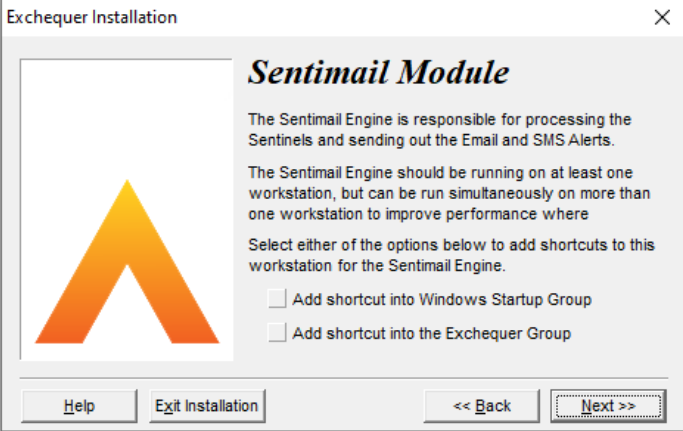
Select "Next" (without ticketing any of the boxes).
Note: You may or may not get this screen, it depends if you have the module.
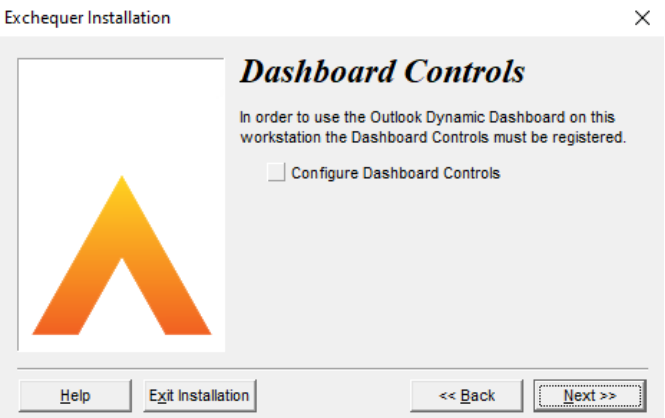
Select "Next" (without ticketing any of the boxes).
Note: You may or may not get this screen, it depends if you have the module.
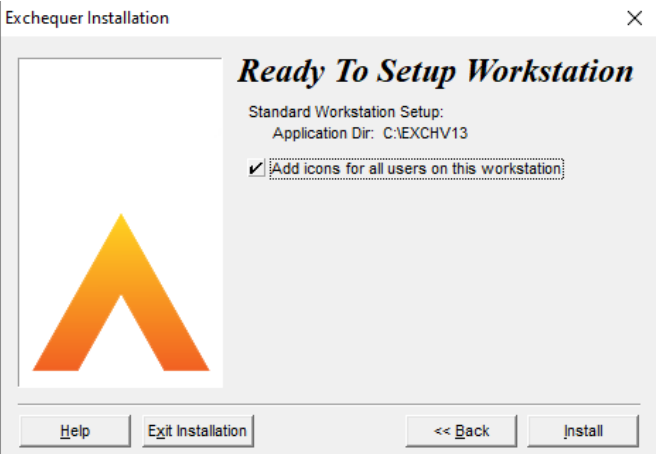
Tick the box to add icons and select "Install".
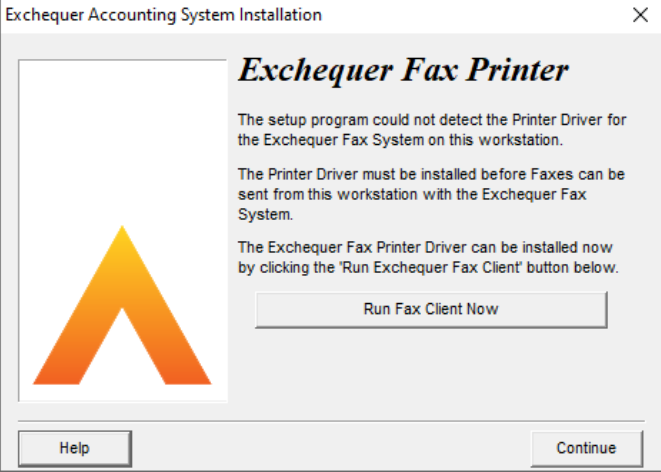
Select "Continue".
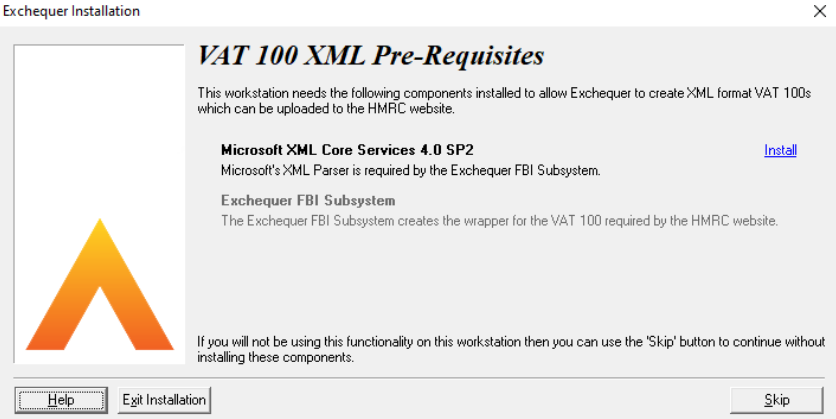
Select "Skip."
Note: You may or may not get this screen, it depends if you have the module.
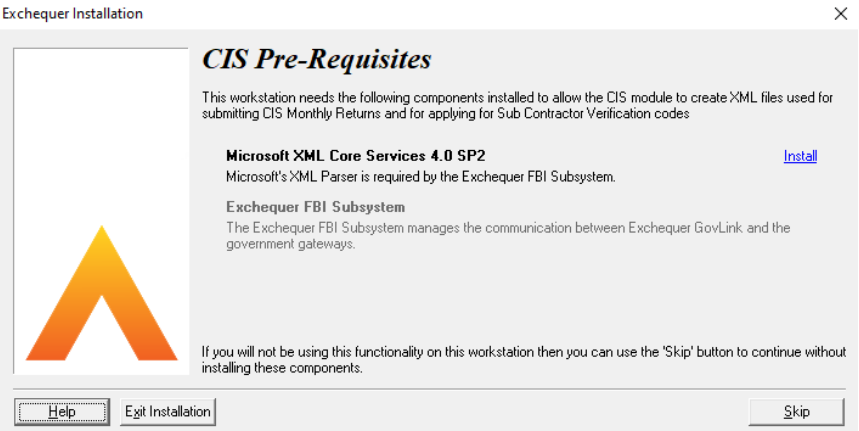
Select "Skip."
Note: You may or may not get this screen, it depends if you have the module.
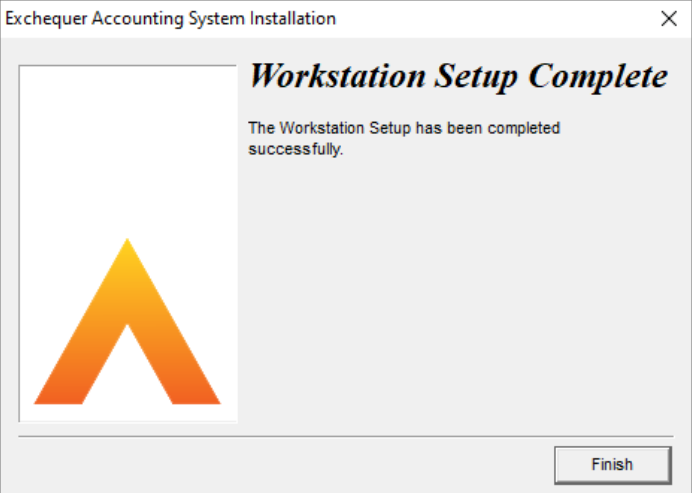
Select "Finish".
Installing OLE Add Ins
OLE is a useful tool which allows you to pull data into excel from Exchequer for reportingpurposes. It allows some static information to be saved back to Exchequer.
In order to use OLE you will need to install the Add-Ins into Excel. Please follow the steps below to carry out this process:
-
Open Excel and go to File – Options
-
Select ‘Add Ins’ from the left-hand panel (note, this screen could take a fewmoments to load)
-
At the bottom of the screen, you will see a drop-down list labelled ‘Manage’ensure Excel Add-ins are selected and then select ‘Go’
-
Select ‘Browse’ and browse windows to locate your Exchequer directory
-
You will be presented with a list of .xla files. Double click to select each one, in the following order (please note you will need to select browse again after installing each one)
-
EntFuncs
-
EntStk
-
EntGL
-
EntFunc2
-
EntStk2
-
EntGL2
-
EntData
-
EntDrill
-
After installing each add in, ensure you say NO when it asks if you wish to save the Add ins to the local folder.
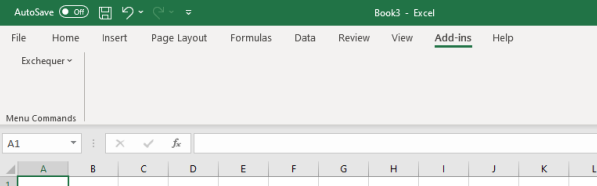
Once the Add-Ins are installed, exit excel and log back in again, and your Excel functions should now work correctly. You should see an Add-Ins menu on the top ribbon bar in Excel. If you select this, you should have an exchequer option underneath:

 info@thehbpgroup.co.uk
 01482 423910